How It Work
Profile Page
1. Update Your Profile:
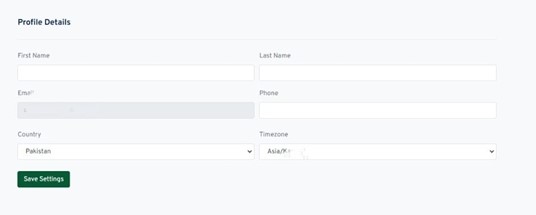
On the Profile page, you can update several fields:
First Name and Last Name: Please ensure your full name is updated, as that will be the name displayed on your account.
Email Address: Please enter the correct email, as all notifications and messages concerning your account will be sent to that address.
Phone Number: You can add a new phone number or update an existing one,
making it easy to reach you.
2. Select Your Country and Time Zone:
Select your country and time zone from the dropdown menus to make sure that all schedules and notifications fall upon your local time.
3. Save Changes:
Once you make your edits, click on "Save Settings" and the appropriate
changes will be applied immediately. The changes you made will be saved
instantly.
This page is for maintaining the correct personal information to ensure a
smooth user experience at Koran Academy.
Password Page
On the Password page of the Settings section:
1. Change Your Password:
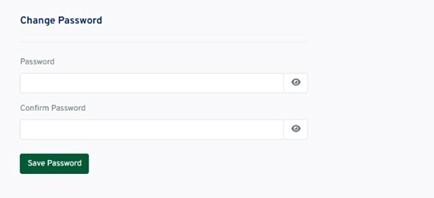
Enter your new password in the "New Password" field. Confirm the password by typing the exact same password in the "Confirm New Password" field.
You can see the password while typing by toggling the visibility on and off using the eye icon next to each field.
2. Save Changes:
On clicking Save Password after entering and confirming the password, the
new password becomes active.
This assures a safe way to reset or update your account access.
Payment Page
This page enables users to manage their payment methods, payments, and
transaction history in an efficient manner. How does it work?
1. Payment Methods:
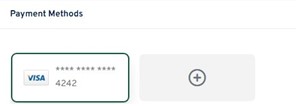
Shows the presently saved payment method(s) like debit or credit card(s),
to add a new payment method, click on the “+” icon and you will get a
prompt to fill out new payment information.
When adding a new payment method, you will be prompted to set it as
your default for future transactions.

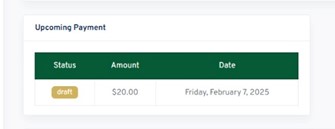
2. Upcoming Payments: Displays details of the immediately coming payment along with status (i.e., draft), amount, and payment date. Keeps users informed about any upcoming charges from their accounts.
3. Payment History: Displays the list of past transactions along with invoice numbers, status of payment, method of payment, amount, and date.
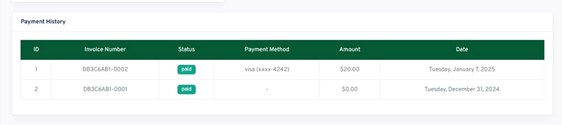
This section ensures that users can retrieve and verify pertinent
information regarding when they made payments and what they paid for.
In case of Failed Payments
If your payment fails, your plan and all scheduled classes will be placed
on hold until the payment is successfully processed.
Plan Page
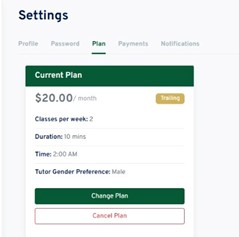
The Plan area features all relevant subscriptions details. Here is how it goes:
1. View Current Plan Details:
Shows your current plan, which includes:
Monthly Cost: The amount you pay for your plan.
Classes per Week: Number of sessions in a week.
Duration: Length of each class.
Tutor Gender Preference: The gender before which you prefer your tutor.
2. Change Plan:
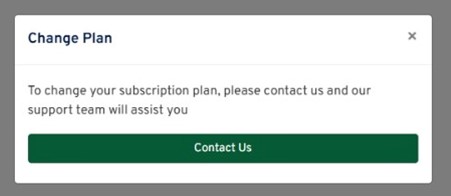
Clicking the Change Plan button opens a pop-up window.
Here is where you can contact admin and send your request to make changes
in your plan
3. Cancel Plan:
If you want to cancel your subscription, you can do so by clicking Cancel Plan . All scheduled classes will be removed, and the subscription will be terminated right away upon canceling.
Plan page will help you tailor the subscription to your desires.
Notification Settings
This page lets users change their notification settings to key features of learning Quran. This section provides:
1. Class Reminder Notifications
Set notification reminders before your class. Get notified via either email, dashboard or both.
How early before the class do you wish to be notified? (e.g. 10 minutes, 1 hour)
2. Session Recording Notifications
Get notifications once the recordings of your finished sessions are available.
Choose to be notified via email, dashboard or both.
3. Tutor Feedback Notifications
The notification lets you know about the feedback from your tutor after a
session.
You can choose between email, dashboard or both.
Enrollment Confirmation:
After enrolling, you will receive an activation email and notification on dashboard.
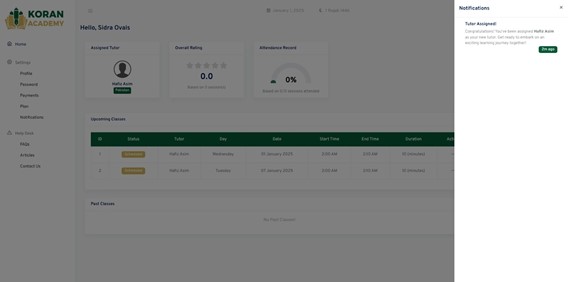
Tutor Assignment Updates:
If you enroll but a tutor is not immediately assigned, you will receive an email informing you that we are searching for a tutor.
Once a tutor is assigned, you will receive another email with the tutor’s
details.
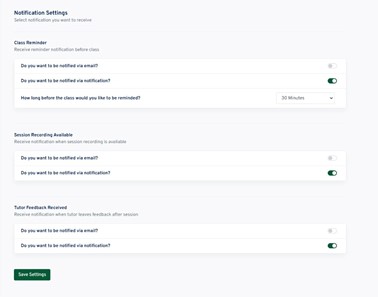
Once you change your preferences, click “Save Settings”to
apply the changes. This will facilitate a more personalized and smooth
learning ride.
Class Notifications and Call Instructions
1. Class Notifications:
Before your class starts, you will receive a notification according to your plan duration. Always know about your session in advance.
2. Browser Settings for Optimal Experience:
For the best experience, ensure that your browser microphone settings are on:
For Chrome:
Click on the two dots situated in the upper left corner on URL bar
Click the button to switch on Microphone and Notification
Your microphone is on, and the Koran Academy platform has permission to use it.
For Firefox:
Click on the menu icon (three horizontal lines) and select Settings.
Click on "Privacy & Security" > "Permissions" > "Microphone Settings."
Koran Academy website is allowed microphone access.
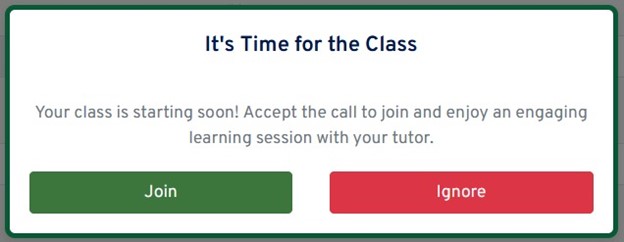
3. Joining the Call:
When class begins, a ringtone will ring.
Accept the call on the platform, and the session will start.
4. After Class
After class, you can rate your experience and give some feedback about the session. This helps us maintain quality and improve your learning journey.
5. Call System:
Koran Academy uses its own secure call system.
All calls are recorded to help with your revisions and ensure seamless learning experiences.
You can make the most of your learning experience and achieve something good out of every class.